 Changing Cost & Price
| Document Version | v3 |
|---|---|
| Document Last Updated | 2/14/2024 |
| Software Version Documented | v9.9.2 |
Task/Problem Overview
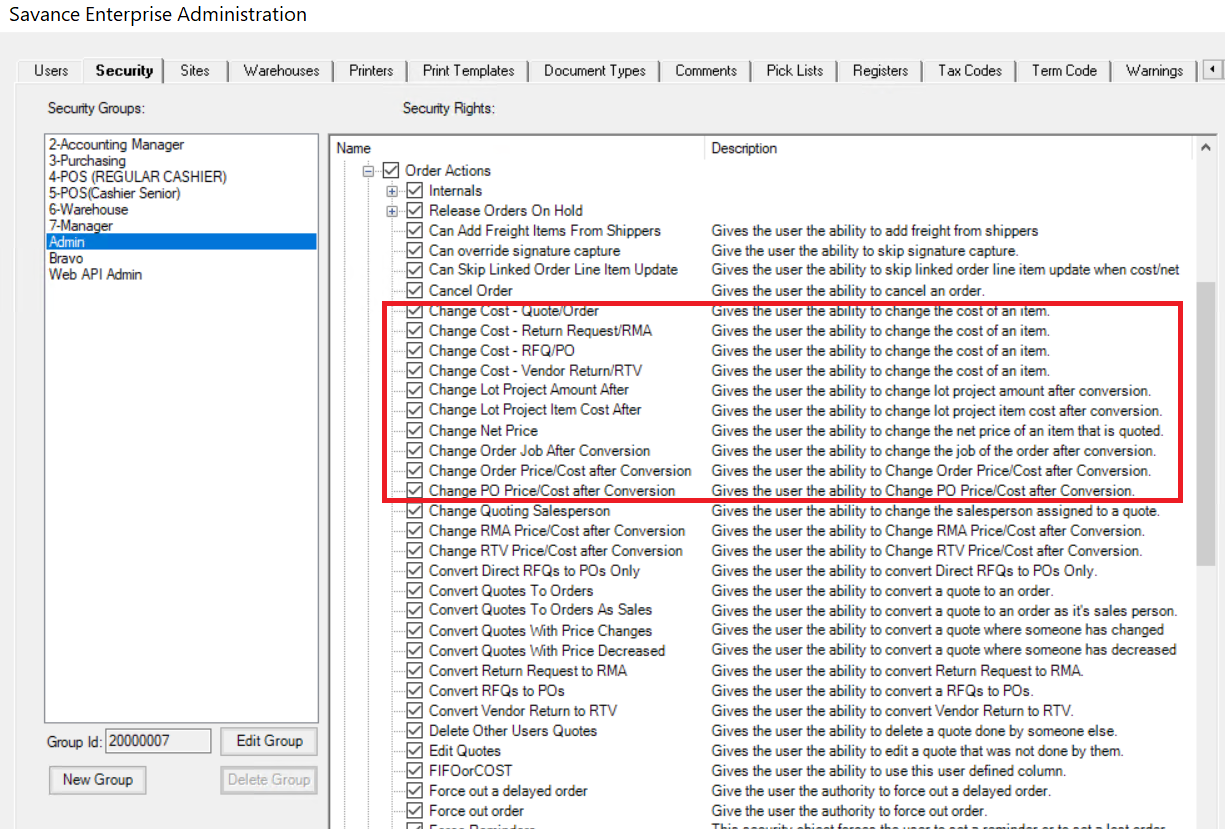
This KB article covers how to change the cost and price for an item on an order. First, it is important to understand the different security rights pertaining to changing the cost and price of an order. Only users with the proper security rights assigned to them will be able to make the necessary changes. These are listed on the Security tab of the Administrator. Navigate to Application Security Objects -> Order Actions to find them.
-
Change Cost - Quote/Order - Gives the user the ability to change the cost of an item in a quote or order.
-
Change Cost - Return Request/RMA - Gives the user the ability to change the cost of an item in a return request or RMA.
-
Change Cost - RFQ/PO - Gives the user the ability to change the cost of an item in an RFQ or PO.
-
Change Cost - Vendor Return/RTV - Gives the user the ability to change the cost of an item in a vendor return or RTV.
-
Change Net Price - Gives the user the ability to change the net price of an item that is quoted.
-
Change Order Price/Cost After Conversion - Gives the user the ability to change order price/cost after conversion.
-
Change PO Price/Cost After Conversion - Gives the user the ability to change PO price/cost after conversion.
-
View Cost And Margin - Gives the user the ability to view both the cost and margin columns within a quote.
Before You Convert
On a quote, return request, RFQ, or vendor return (prior to conversion), you can directly modify the cost and price of a line item if you have the proper security rights. Simply locate the Net and Cost columns on the spreadsheet, and directly type in the values you want to use. The percentage in the Margin column, along with the line item total in the Ext Net column, will automatically be recalculated to reflect the cost & price changes.

After You Convert
On an order, RMA, PO, or RTV (after conversion), you will get the following message if you attempt to change the cost or net price:

To unlock the order and make the desired changes, first use the Unlock Order button, which is found on the History tab. As long as the order is not already invoiced, you will be able to edit the line items.

If you already invoiced the order, then you must first go into the invoice, and select ‘Un-Invoice’ and hit Save&Close. Now you are able to go back to the order, unlock it, and make the desired changes. Don't forget to go back into the shipper and invoice the order again.
